After Creation: Configuring Your Promotion
After creating a promotion using either method, you will land on its detail page and see a success message. This page contains multiple tabs for powerful post-creation configurations.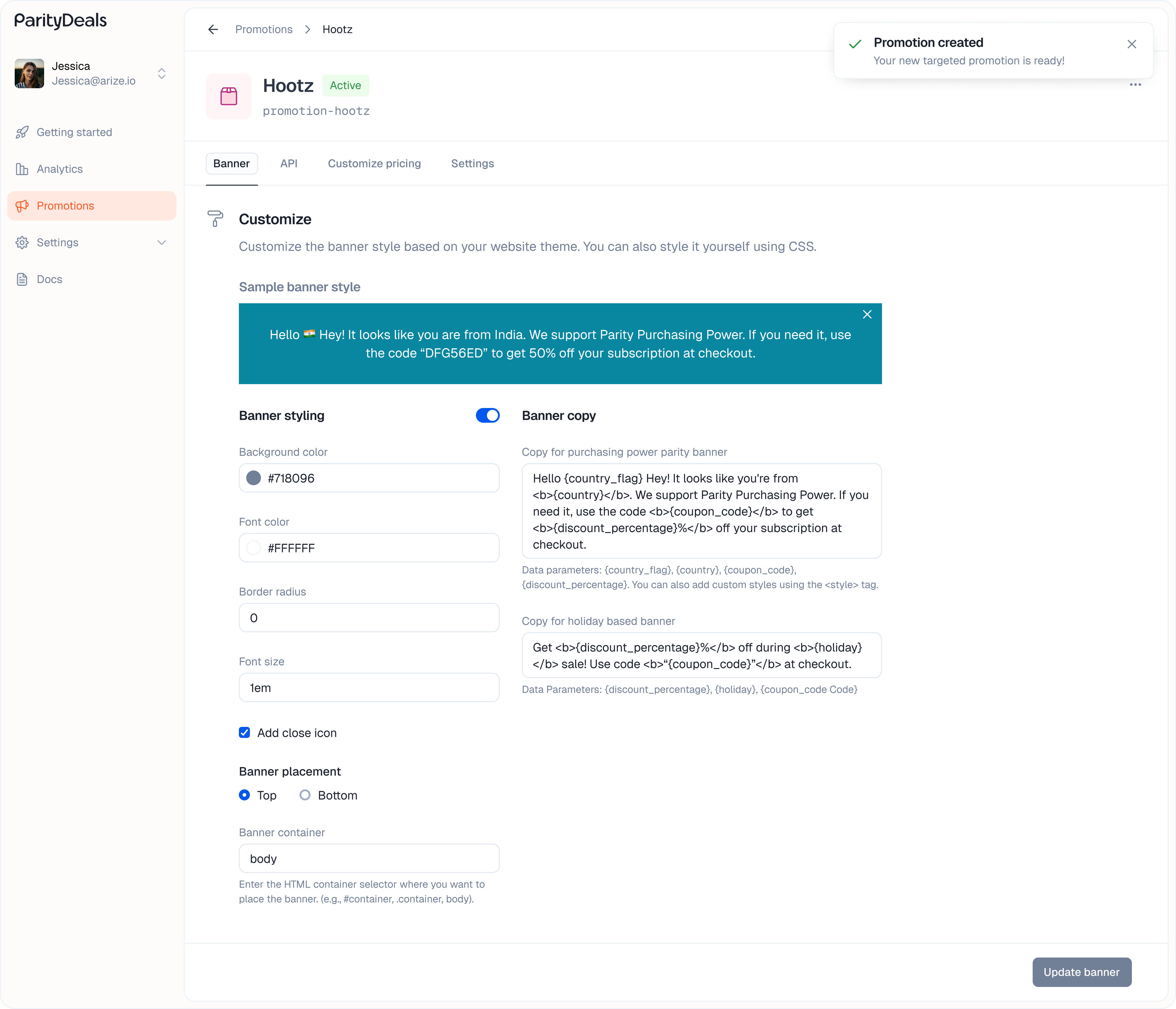
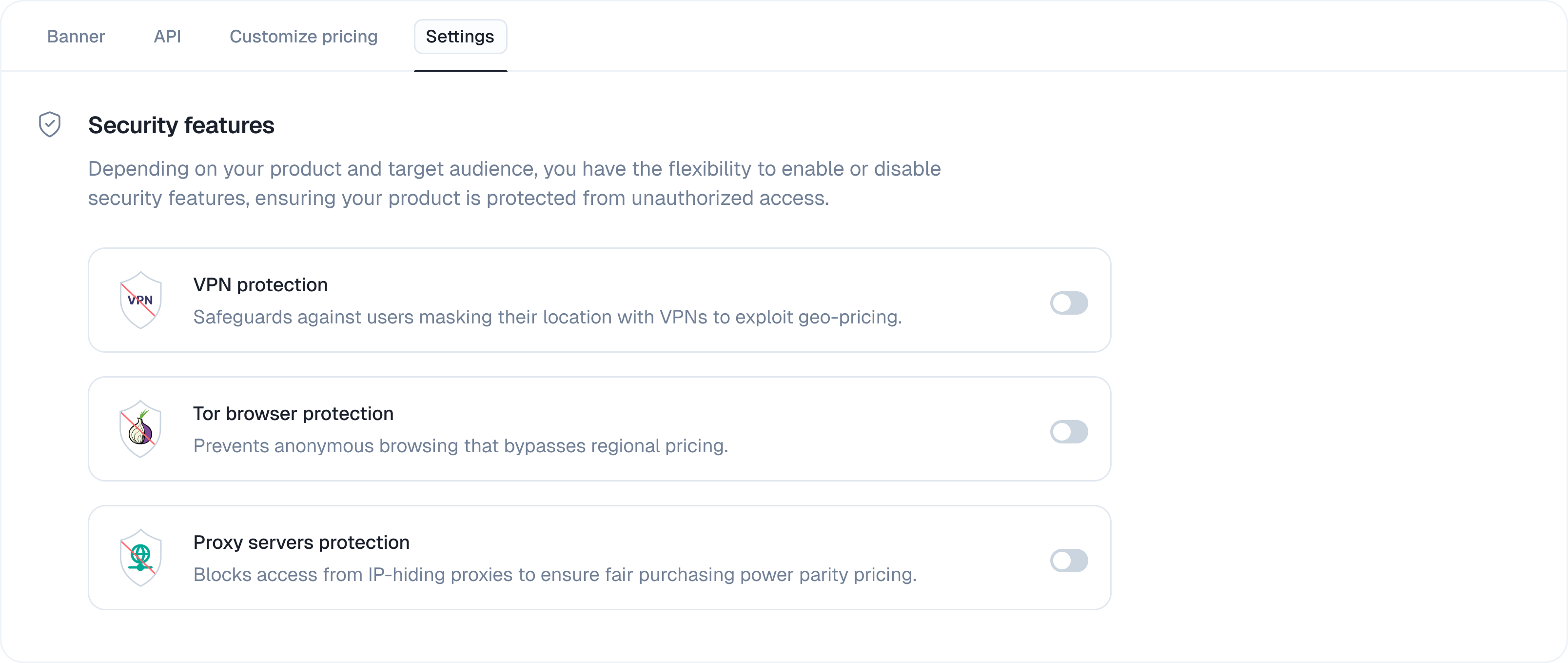
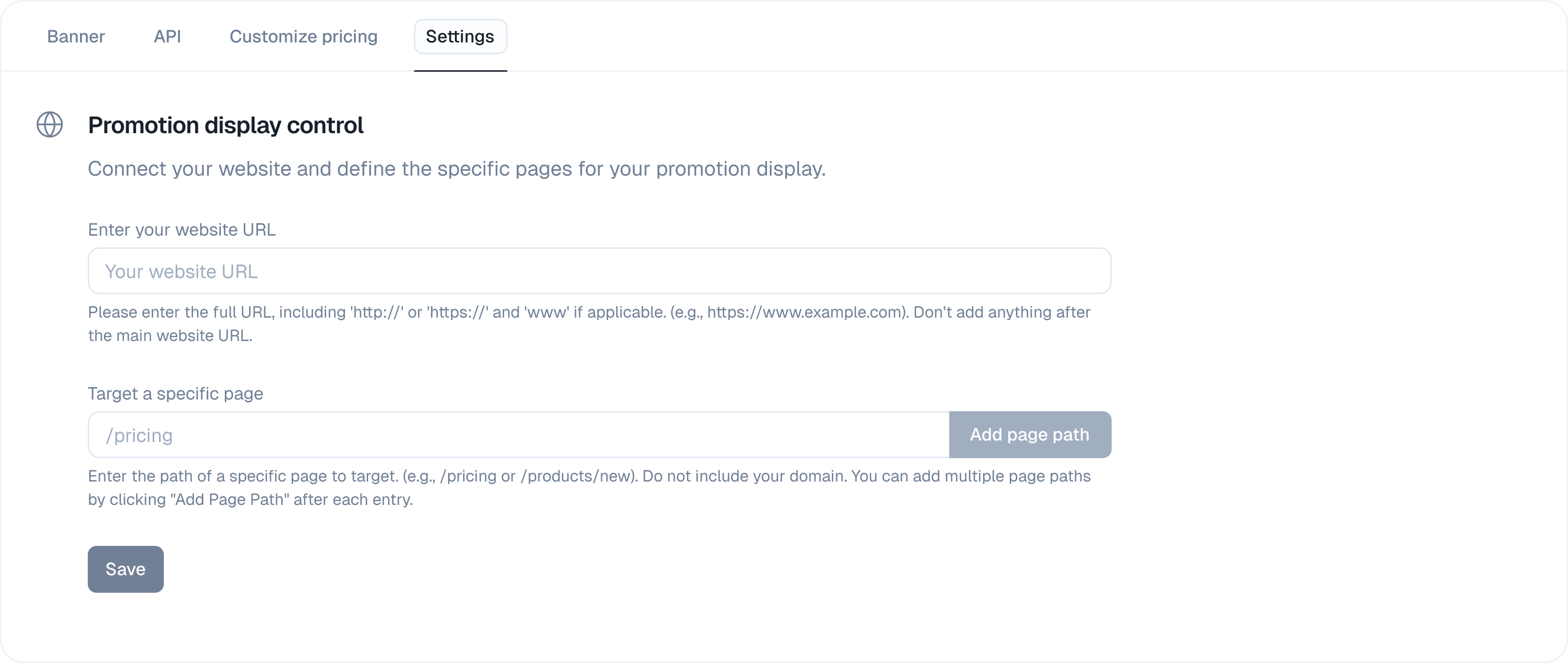
- Settings
This tab allows you to customize the promotional banner that will be displayed on your site and provides the code to make it live.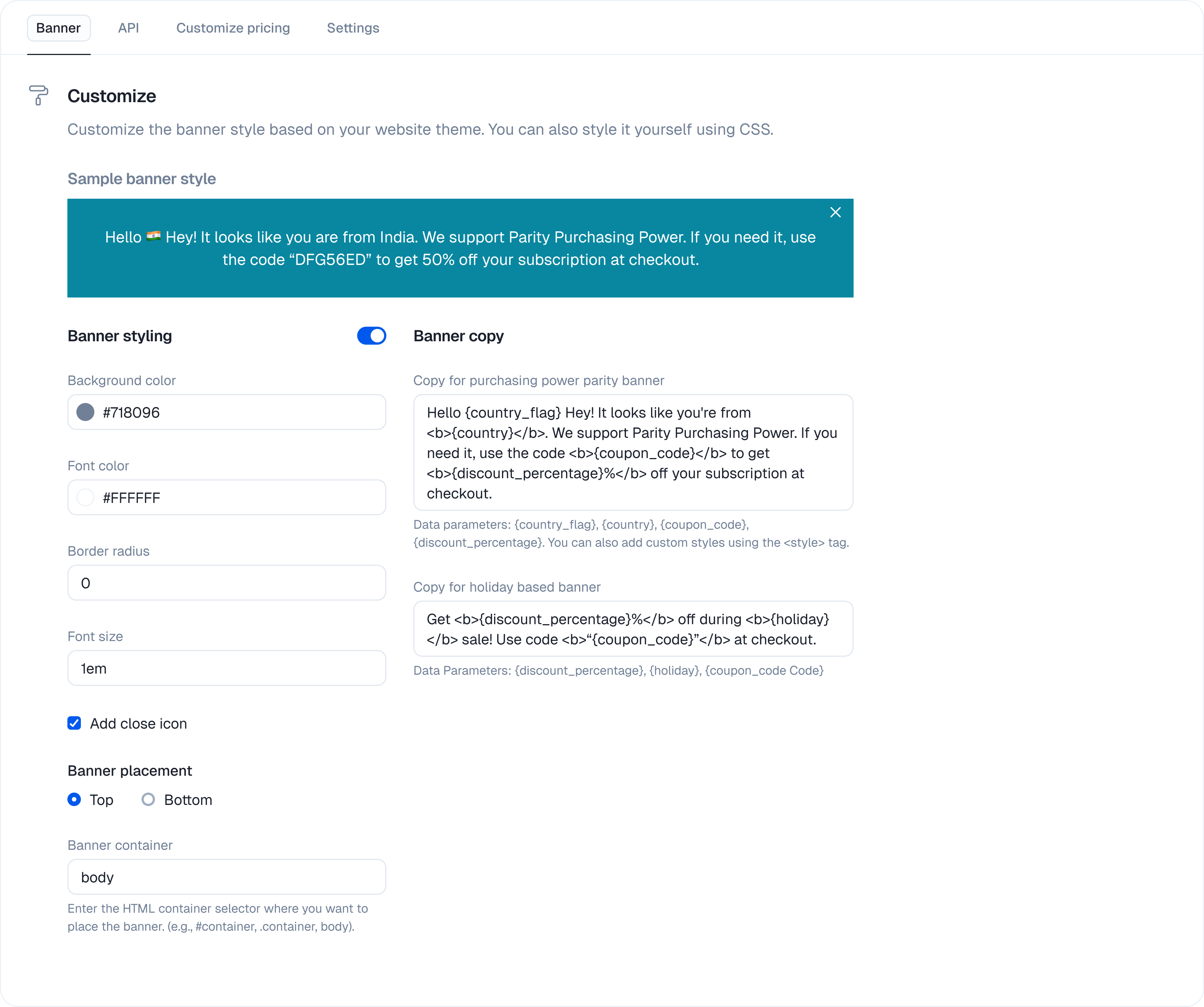
Banner Styling
Customize the banner’s appearance to match your website’s theme using the no-code style editor:- Background color, Font color, Border radius, Font size
Banner Copy
Toggle on “Banner copy” to customize the text displayed. You can use dynamic variables to make the banner more personalized:{country_flag}- The visitor’s country flag emoji.{country}- The visitor’s country name.{coupon_code}- The specific coupon code for the visitor’s region.{discount_percentage}- The discount percentage.- Example Copy:
Hello {country_flag}! It looks like you're from {country}. We support Parity Purchasing Power. Use the code <b>{coupon_code}</b> to get <b>{discount_percentage}%</b> off your subscription at checkout.
Banner Placement
- Position: Choose to display the banner at the Top or Bottom of the viewport.
- Banner Container: Enter the HTML container selector where you want the banner to be placed (e.g.,
#container,.main-content,body).