> ## Documentation Index
> Fetch the complete documentation index at: https://docs.paritydeals.com/llms.txt
> Use this file to discover all available pages before exploring further.
# Customization & Settings
> Manage banner appearance, security, and display rules.
## After Creation: Configuring Your Promotion
After creating a promotion using either method, you will land on its detail page and see a success message. This page contains multiple tabs for powerful post-creation configurations.
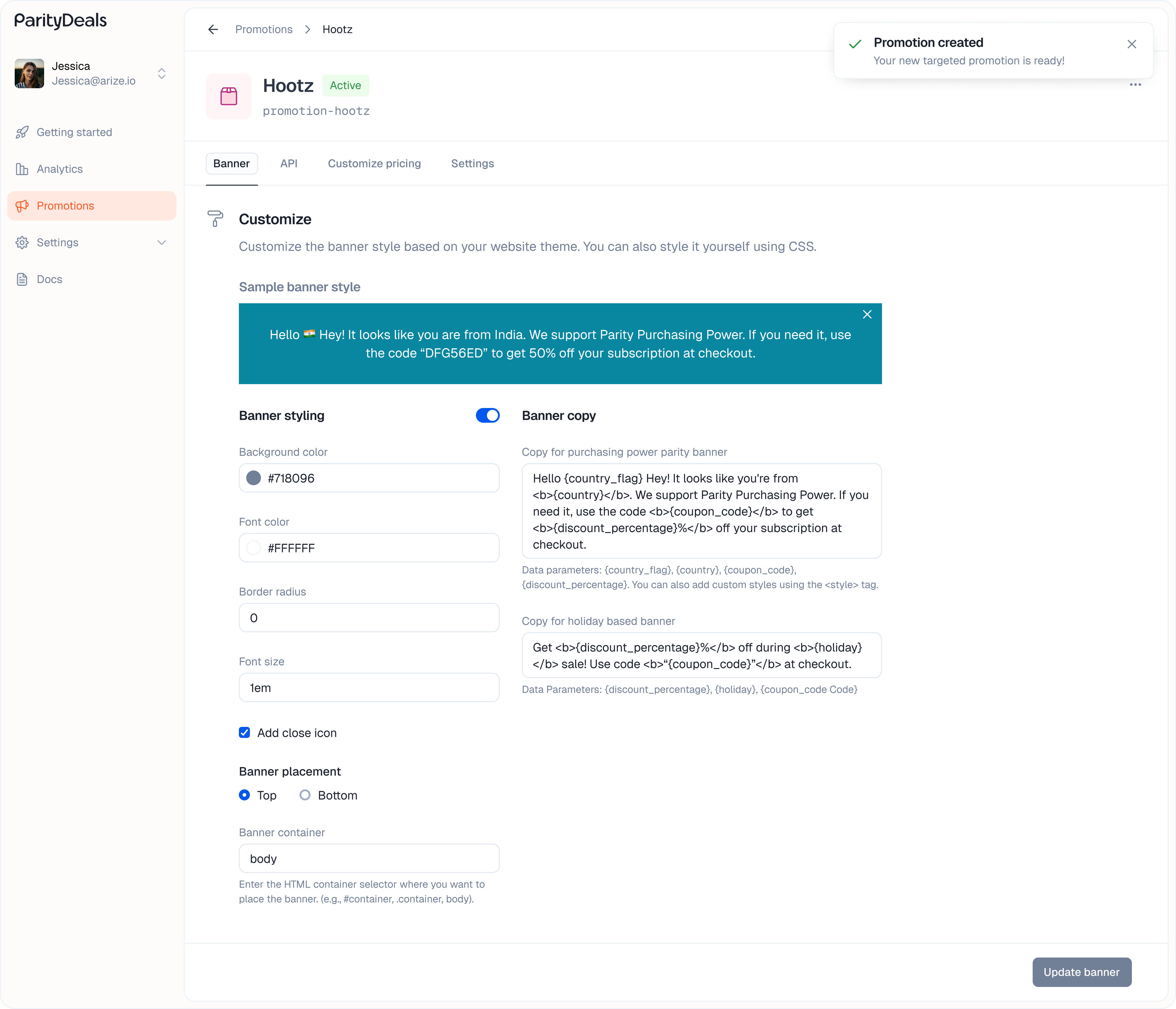 This tab allows you to customize the promotional banner that will be displayed on your site and provides the code to make it live.
#### Banner Styling
Customize the banner's appearance to match your website's theme using the no-code style editor:
* **Background color, Font color, Border radius, Font size**
#### Banner Copy
Toggle on **"Banner copy"** to customize the text displayed. You can use dynamic variables to make the banner more personalized:
* `{country_flag}` - The visitor's country flag emoji.
* `{country}` - The visitor's country name.
* `{coupon_code}` - The specific coupon code for the visitor's region.
* `{discount_percentage}` - The discount percentage.
* **Example Copy:** `Hello {country_flag}! It looks like you're from {country}. We support Parity Purchasing Power. Use the code {coupon_code} to get {discount_percentage}% off your subscription at checkout.`
#### Banner Placement
* **Position:** Choose to display the banner at the **Top** or **Bottom** of the viewport.
* **Banner Container:** Enter the HTML container selector where you want the banner to be placed (e.g., `#container`, `.main-content`, `body`).
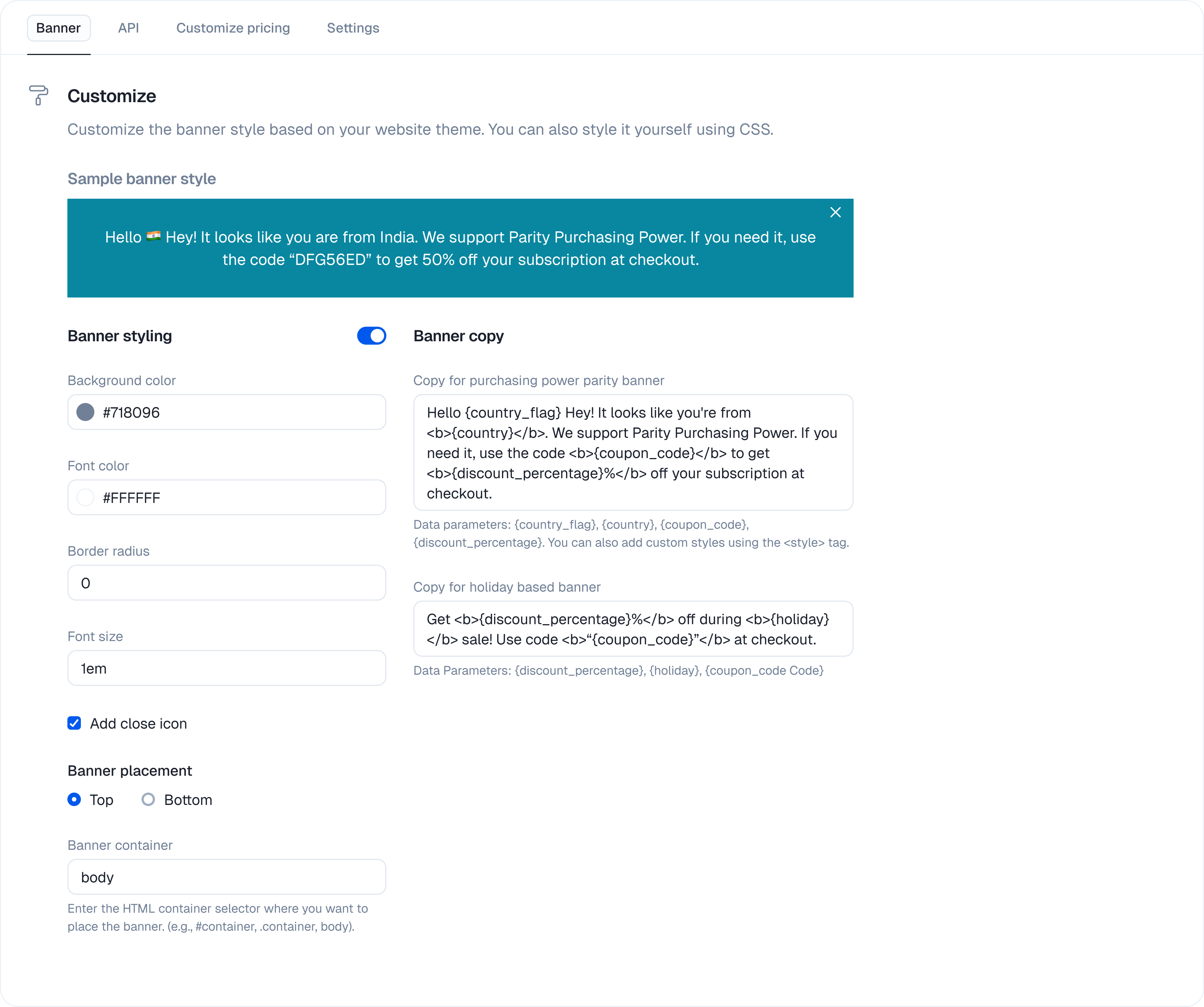
This tab allows you to customize the promotional banner that will be displayed on your site and provides the code to make it live.
#### Banner Styling
Customize the banner's appearance to match your website's theme using the no-code style editor:
* **Background color, Font color, Border radius, Font size**
#### Banner Copy
Toggle on **"Banner copy"** to customize the text displayed. You can use dynamic variables to make the banner more personalized:
* `{country_flag}` - The visitor's country flag emoji.
* `{country}` - The visitor's country name.
* `{coupon_code}` - The specific coupon code for the visitor's region.
* `{discount_percentage}` - The discount percentage.
* **Example Copy:** `Hello {country_flag}! It looks like you're from {country}. We support Parity Purchasing Power. Use the code {coupon_code} to get {discount_percentage}% off your subscription at checkout.`
#### Banner Placement
* **Position:** Choose to display the banner at the **Top** or **Bottom** of the viewport.
* **Banner Container:** Enter the HTML container selector where you want the banner to be placed (e.g., `#container`, `.main-content`, `body`).
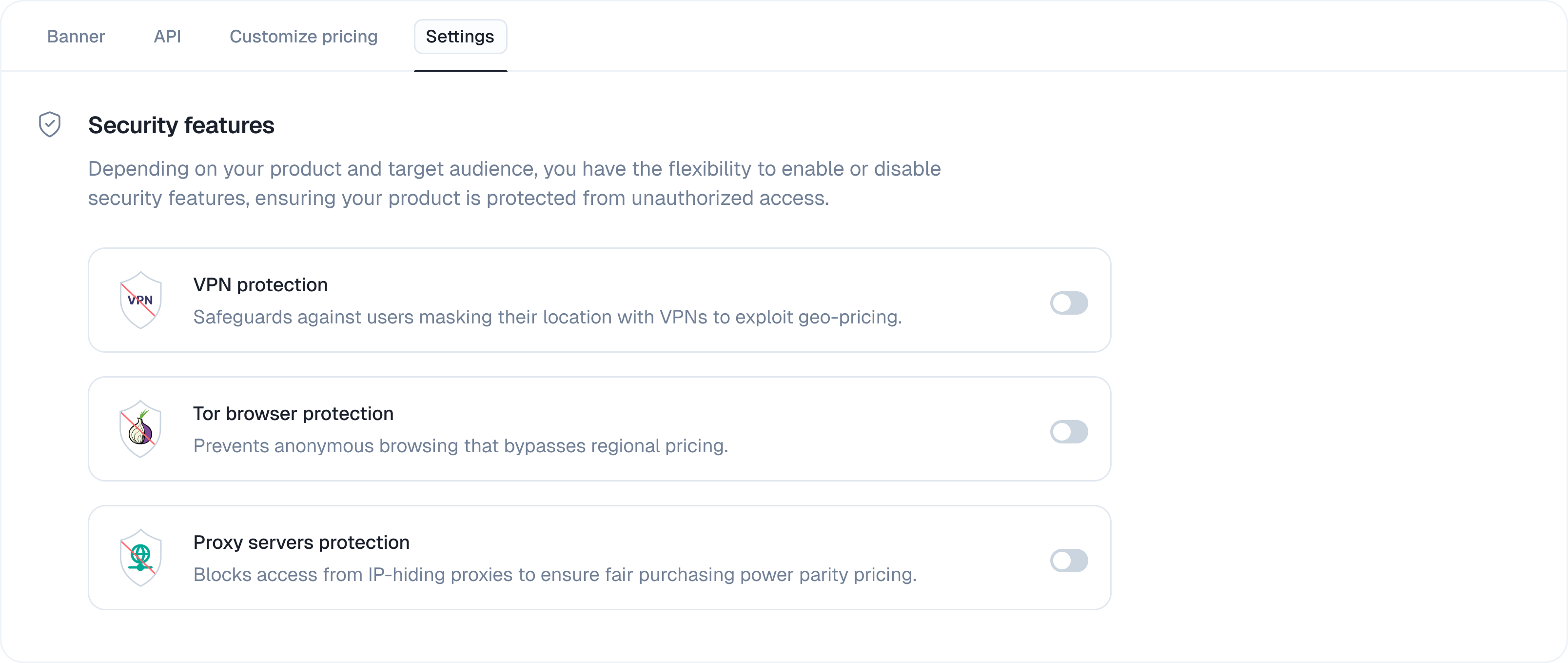
 This tab allows you to configure security and display rules for your promotion.
#### Security
Enable or disable security features to protect your promotion from unauthorized access based on your product and target audience.
* **VPN protection:** Safeguards against users masking their location with VPNs to exploit geo-pricing.
* **Tor browser protection:** Prevents anonymous Browse that bypasses regional pricing.
* **Proxy servers protection:** Blocks access from IP-hiding proxies to ensure fair purchasing power parity pricing.
This tab allows you to configure security and display rules for your promotion.
#### Security
Enable or disable security features to protect your promotion from unauthorized access based on your product and target audience.
* **VPN protection:** Safeguards against users masking their location with VPNs to exploit geo-pricing.
* **Tor browser protection:** Prevents anonymous Browse that bypasses regional pricing.
* **Proxy servers protection:** Blocks access from IP-hiding proxies to ensure fair purchasing power parity pricing.
 #### Promotion Display Control
Connect your website and define the specific pages where your promotional banner should appear.
1. **Enter your website URL:** Enter the full URL, including `http://` or `https://` (e.g., `https://www.example.com`). Do not add anything after the main website URL.
#### Promotion Display Control
Connect your website and define the specific pages where your promotional banner should appear.
1. **Enter your website URL:** Enter the full URL, including `http://` or `https://` (e.g., `https://www.example.com`). Do not add anything after the main website URL.
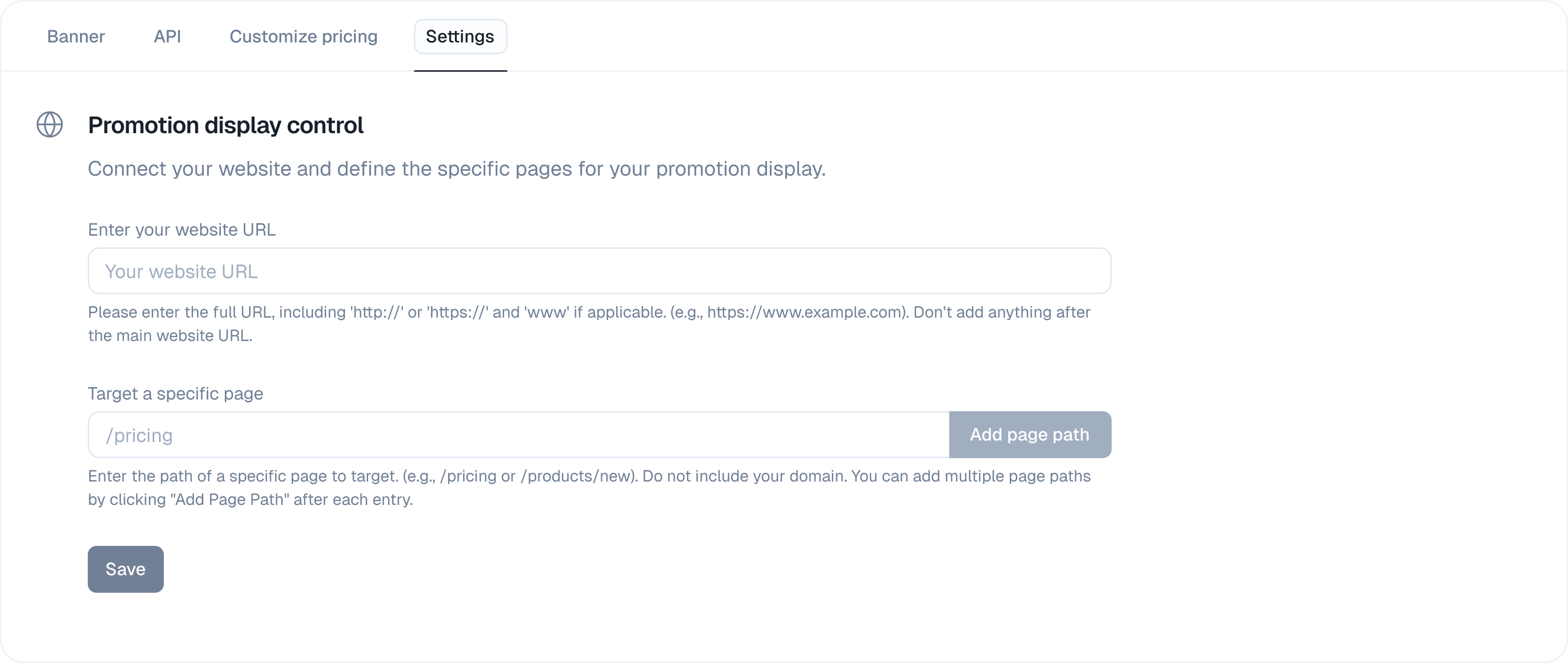 2. **Target a specific page:** Enter the path of a specific page to target (e.g., `/pricing` or `/products/new`). Do not include your domain. Add multiple page paths by clicking **"Add Page Path"** after each entry.
3. Click the **"Save"** button to apply your display rules.
***
2. **Target a specific page:** Enter the path of a specific page to target (e.g., `/pricing` or `/products/new`). Do not include your domain. Add multiple page paths by clicking **"Add Page Path"** after each entry.
3. Click the **"Save"** button to apply your display rules.
***