> ## Documentation Index
> Fetch the complete documentation index at: https://docs.paritydeals.com/llms.txt
> Use this file to discover all available pages before exploring further.
# Modeling ElevenLabs' Latest Hybrid Pricing
> A visual, step-by-step guide to configuring a hybrid subscription model with a free trial, based on the latest ElevenLabs plans.
This guide details how to replicate ElevenLabs' sophisticated hybrid pricing model in ParityDeals. The model combines subscription tiers with usage-based overages and includes an introductory free trial for paid plans.
***
## Step 1: Define the Product
First, create a single "Product" to act as a container for all of ElevenLabs' plans and features.
1. From the side navigation menu, navigate to **Product Catalog > Products**.
2. Click the **+ Create product** button.
3. Fill in the product details:
* **Product name**: `ElevenLabs AI Speech Services`
* **Identifier**: `product-elevenlabs-ai-speech`
* **Subscription type**: Select **Single active subscription**.
4. Click **Create**.
***
## Step 2: Create Billable Features
Next, define the core features. These will be used to grant access and set limits within each subscription plan.
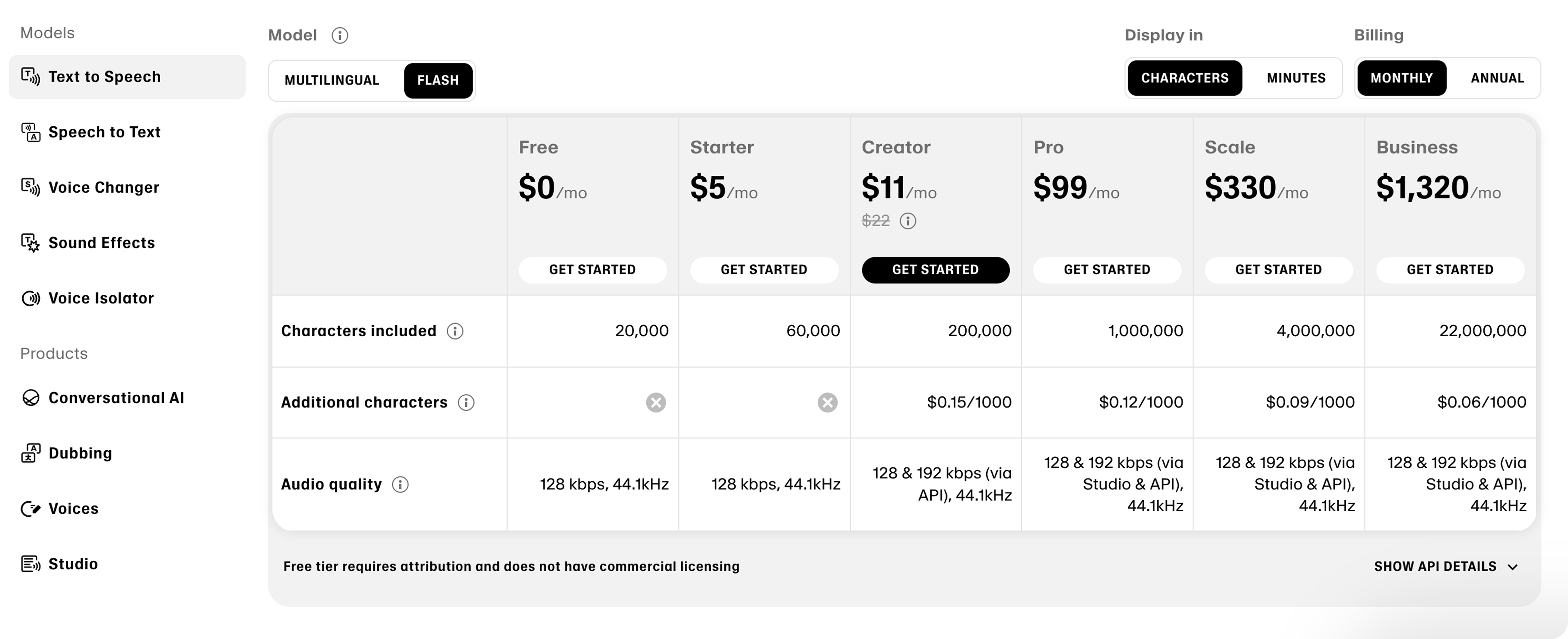 *A summary of key features available across different plans.*
Navigate to **Product Catalog > Feature entitlements** to begin creating the following:
This feature tracks the primary usage metric. We use a `Raw` metered type, assuming your application sends an event with a `character_count` each time speech is generated.
1. Click **+ Create feature**.
2. Fill in the details:
* **Feature name**: `Characters Generated`
* **Feature type**: `Meter` > `Raw`
* **Feature unit**: `Character` / `Characters`
3. Click **Continue**.
4. **Define Event Filters**: Set a filter where `event name` `equals` `speech.generated`.
5. **Configure Aggregation**: Select `Sum` over the event property `character_count`.
6. Click **Create**.
This feature defines the number of custom voices a user can create. We use the `Customizable` type to set a specific quantity limit per plan.
1. Click **+ Create feature**.
2. Fill in the details:
* **Feature name**: `Custom Voice Slots`
* **Feature type**: `Customizable`
* **Feature unit**: `Custom Voice Slot` / `Custom Voice Slots`
3. Click **Create**.
This feature grants access to the advanced Professional Voice Cloning tool. We use a `Switch/Boolean` type as it's either enabled or disabled for a plan.
1. Click **+ Create feature**.
2. Fill in the details:
* **Feature name**: `Professional Voice Cloning`
* **Feature type**: `Switch/boolean`
3. Click **Create**.
***
## Step 3: Design and Configure Pricing Plans
Now, create the subscription plans based on the latest tiers from the ElevenLabs pricing page.
*A summary of key features available across different plans.*
Navigate to **Product Catalog > Feature entitlements** to begin creating the following:
This feature tracks the primary usage metric. We use a `Raw` metered type, assuming your application sends an event with a `character_count` each time speech is generated.
1. Click **+ Create feature**.
2. Fill in the details:
* **Feature name**: `Characters Generated`
* **Feature type**: `Meter` > `Raw`
* **Feature unit**: `Character` / `Characters`
3. Click **Continue**.
4. **Define Event Filters**: Set a filter where `event name` `equals` `speech.generated`.
5. **Configure Aggregation**: Select `Sum` over the event property `character_count`.
6. Click **Create**.
This feature defines the number of custom voices a user can create. We use the `Customizable` type to set a specific quantity limit per plan.
1. Click **+ Create feature**.
2. Fill in the details:
* **Feature name**: `Custom Voice Slots`
* **Feature type**: `Customizable`
* **Feature unit**: `Custom Voice Slot` / `Custom Voice Slots`
3. Click **Create**.
This feature grants access to the advanced Professional Voice Cloning tool. We use a `Switch/Boolean` type as it's either enabled or disabled for a plan.
1. Click **+ Create feature**.
2. Fill in the details:
* **Feature name**: `Professional Voice Cloning`
* **Feature type**: `Switch/boolean`
3. Click **Create**.
***
## Step 3: Design and Configure Pricing Plans
Now, create the subscription plans based on the latest tiers from the ElevenLabs pricing page.
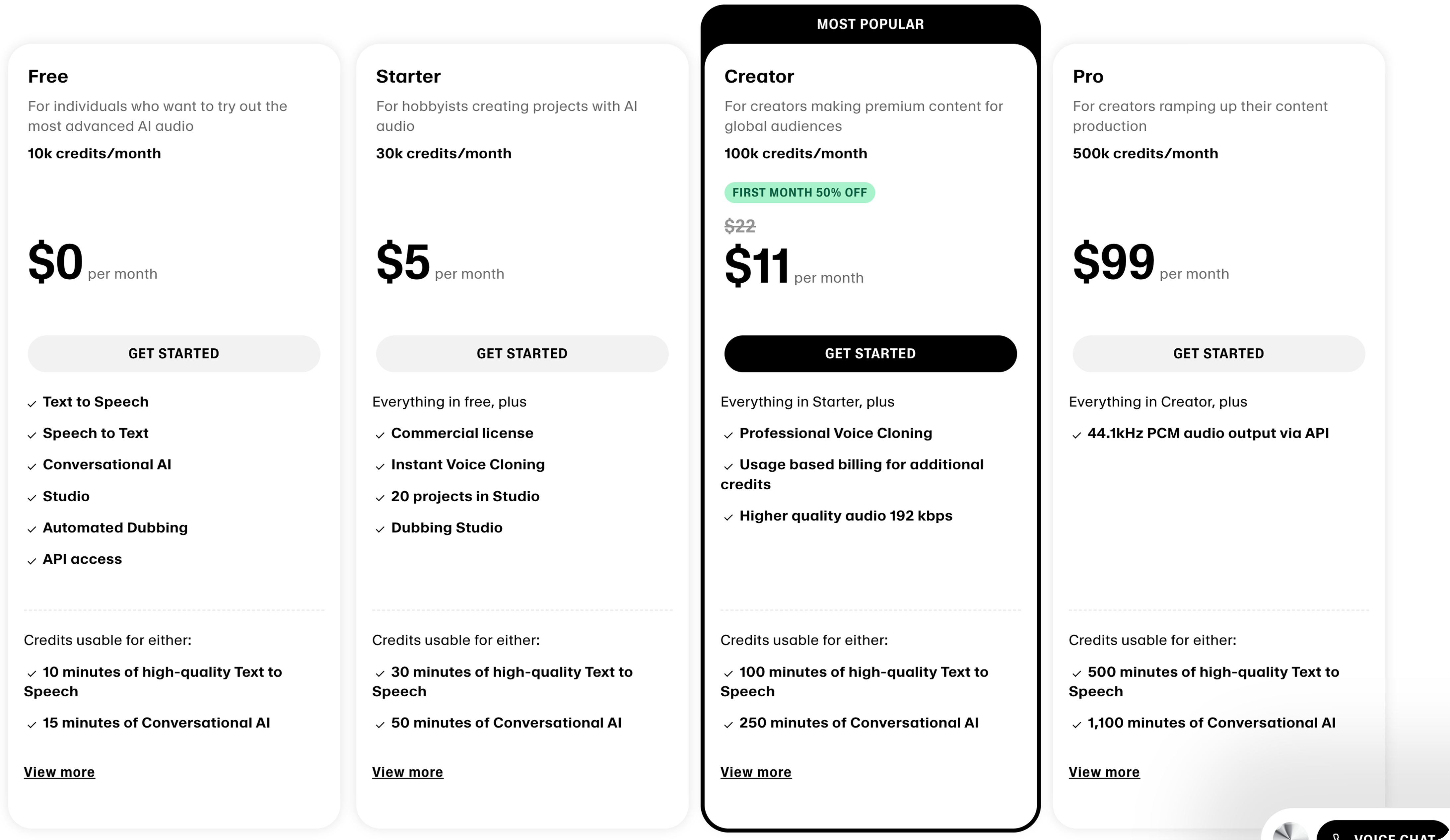 *The Free, Starter, and Creator tiers serve as our models.*
Navigate to your **ElevenLabs AI Speech Services** product page to begin.
### 1. Create the Plan
1. On the product page, click **+ Create plan**.
2. Enter the details:
* **Plan name**: `Free`
* **Description**: `For hobbyists who want to try out speech synthesis.`
3. Click **Create**.
### 2. Configure Pricing & Entitlements
The Free tier has no charge and a hard limit on characters.
1. On the `Free` plan page, click **Set price** and select the plan type **Free**.
2. Navigate to the **Feature entitlements** section of the plan.
3. Click **+ Add** and select the **Characters Generated** feature. Configure its hard limit:
* **Usage limit**: `10000`
* Ensure the "Soft limit" toggle is **OFF**.
* **Usage reset**: `Monthly`
4. Click **+ Add** again and select **Custom Voice Slots**:
* **Usage limit**: `0`
5. **Save** the entitlements, then **Publish** the plan.
### 1. Create the Plan
1. On the product page, click **+ Create plan**.
2. Enter the details:
* **Plan name**: `Starter`
* **Description**: `For creators who want to try our best voices.`
3. Click **Create**.
### 2. Configure Pricing (Hybrid Model)
The Starter plan has a fixed fee that includes a character quota, plus a per-character charge for overage. The promotional offer will be handled by a free trial in the next step.
1. On the `Starter` plan page, click **Set price**.
2. Select **Paid**, add a **Monthly** billing cycle, and continue.
3. **Add a Fixed Charge**:
* **Monthly price**: `$5`
4. **Add a Usage-Based Charge**:
* Choose the **Characters Generated** feature.
* For "Pricing model," select **Tiered**.
* **Configure the tiers:**
* **Tier 1 (Included Quota)**: `First unit: 1`, `Last unit: 30000`, `Unit price: $0.00`
* **Tier 2 (Overage)**: `First unit: 30001`, `Last unit: Unlimited`, `Unit price: $0.0003`
!\[Overage rate of $0.30 per 1000 extra characters.](https://storage.googleapis.com/gemini-prod/images/56434449-31e9-4670-af96-d8ba668a6d7f) **Overage Calculation**: The overage rate is $0.30 per 1,000 extra characters. The per-character price is `$0.30 / 1000 = $0.0003`.
5. **Save** the pricing configuration.
### 3. Assign Feature Entitlements
1. Navigate to the **Feature entitlements** section for the plan.
2. Click **+ Add** and select **Custom Voice Slots**:
* **Usage limit**: `1`
3. **Save** the entitlements, then **Publish** the plan.
### 1. Create the Plan
1. On the product page, click **+ Create plan**.
2. Enter the details:
* **Plan name**: `Creator`
* **Description**: `For content creators seeking compelling storytelling.`
3. Click **Create**.
### 2. Configure Pricing (Hybrid Model)
1. On the `Creator` plan page, click **Set price**.
2. Select **Paid**, add a **Monthly** billing cycle, and continue.
3. **Add a Fixed Charge**:
* **Monthly price**: `$22`
4. **Add a Usage-Based Charge**:
* Choose the **Characters Generated** feature.
* For "Pricing model," select **Tiered**.
* **Configure the tiers:**
* **Tier 1 (Included Quota)**: `First unit: 1`, `Last unit: 100000`, `Unit price: $0.00`
* **Tier 2 (Overage)**: `First unit: 100001`, `Last unit: Unlimited`, `Unit price: $0.00024`
**Overage Calculation**: The overage rate is $0.24 per 1,000 extra characters. The per-character price is `$0.24 / 1000 = \$0.00024\`.
5. **Save** the pricing configuration.
### 3. Assign Feature Entitlements
1. Navigate to the **Feature entitlements** section for the plan.
2. Click **+ Add** and select **Custom Voice Slots**:
* **Usage limit**: `5`
3. Click **+ Add** and select **Professional Voice Cloning**:
* Set the toggle to **Allowed**.
4. **Save** the entitlements, then **Publish** the plan.
***
## Step 4: Configure an Introductory Free Trial
To provide an introductory offer, you can use the built-in **Free Trial** feature. This provides a `$0` first month, which is a powerful incentive for new users to try a paid plan.
Here's how to add a 30-day free trial to the **Starter** plan. You can repeat these steps for the Creator plan.
1. Navigate to the `Starter` plan page and click to **Edit price**.
2. In the pricing configuration screen, check the box to **Provide free trial**.
3. Set the **Trial period** to `30` and select `days` from the dropdown.
4. Configure the desired action for when the trial ends without a payment method (e.g., "Downgrade to free plan").
5. **Save** the updated pricing configuration. New users subscribing to this plan will now automatically receive a 30-day free trial before standard billing begins.
***
## Step 5: Design the Pricing Table and Activate
Finally, create a pricing table to present the plans and activate it with an Offering.
1. Navigate to **Monetization > Pricing table** and click **+ Create Pricing Table**.
2. In the **Configuration** tab, connect the `ElevenLabs AI Speech Services` product.
3. In the **Content** tab, arrange your plans (`Free`, `Starter`, `Creator`) and customize the display text for features and limits.
4. Navigate to **Monetization > Offerings** and click **+ Create offering**.
5. Select the pricing table you just designed to link it to the product.
6. Click **Create** and use the generated **Offering ID** in your application to render the pricing table.
*The Free, Starter, and Creator tiers serve as our models.*
Navigate to your **ElevenLabs AI Speech Services** product page to begin.
### 1. Create the Plan
1. On the product page, click **+ Create plan**.
2. Enter the details:
* **Plan name**: `Free`
* **Description**: `For hobbyists who want to try out speech synthesis.`
3. Click **Create**.
### 2. Configure Pricing & Entitlements
The Free tier has no charge and a hard limit on characters.
1. On the `Free` plan page, click **Set price** and select the plan type **Free**.
2. Navigate to the **Feature entitlements** section of the plan.
3. Click **+ Add** and select the **Characters Generated** feature. Configure its hard limit:
* **Usage limit**: `10000`
* Ensure the "Soft limit" toggle is **OFF**.
* **Usage reset**: `Monthly`
4. Click **+ Add** again and select **Custom Voice Slots**:
* **Usage limit**: `0`
5. **Save** the entitlements, then **Publish** the plan.
### 1. Create the Plan
1. On the product page, click **+ Create plan**.
2. Enter the details:
* **Plan name**: `Starter`
* **Description**: `For creators who want to try our best voices.`
3. Click **Create**.
### 2. Configure Pricing (Hybrid Model)
The Starter plan has a fixed fee that includes a character quota, plus a per-character charge for overage. The promotional offer will be handled by a free trial in the next step.
1. On the `Starter` plan page, click **Set price**.
2. Select **Paid**, add a **Monthly** billing cycle, and continue.
3. **Add a Fixed Charge**:
* **Monthly price**: `$5`
4. **Add a Usage-Based Charge**:
* Choose the **Characters Generated** feature.
* For "Pricing model," select **Tiered**.
* **Configure the tiers:**
* **Tier 1 (Included Quota)**: `First unit: 1`, `Last unit: 30000`, `Unit price: $0.00`
* **Tier 2 (Overage)**: `First unit: 30001`, `Last unit: Unlimited`, `Unit price: $0.0003`
!\[Overage rate of $0.30 per 1000 extra characters.](https://storage.googleapis.com/gemini-prod/images/56434449-31e9-4670-af96-d8ba668a6d7f) **Overage Calculation**: The overage rate is $0.30 per 1,000 extra characters. The per-character price is `$0.30 / 1000 = $0.0003`.
5. **Save** the pricing configuration.
### 3. Assign Feature Entitlements
1. Navigate to the **Feature entitlements** section for the plan.
2. Click **+ Add** and select **Custom Voice Slots**:
* **Usage limit**: `1`
3. **Save** the entitlements, then **Publish** the plan.
### 1. Create the Plan
1. On the product page, click **+ Create plan**.
2. Enter the details:
* **Plan name**: `Creator`
* **Description**: `For content creators seeking compelling storytelling.`
3. Click **Create**.
### 2. Configure Pricing (Hybrid Model)
1. On the `Creator` plan page, click **Set price**.
2. Select **Paid**, add a **Monthly** billing cycle, and continue.
3. **Add a Fixed Charge**:
* **Monthly price**: `$22`
4. **Add a Usage-Based Charge**:
* Choose the **Characters Generated** feature.
* For "Pricing model," select **Tiered**.
* **Configure the tiers:**
* **Tier 1 (Included Quota)**: `First unit: 1`, `Last unit: 100000`, `Unit price: $0.00`
* **Tier 2 (Overage)**: `First unit: 100001`, `Last unit: Unlimited`, `Unit price: $0.00024`
**Overage Calculation**: The overage rate is $0.24 per 1,000 extra characters. The per-character price is `$0.24 / 1000 = \$0.00024\`.
5. **Save** the pricing configuration.
### 3. Assign Feature Entitlements
1. Navigate to the **Feature entitlements** section for the plan.
2. Click **+ Add** and select **Custom Voice Slots**:
* **Usage limit**: `5`
3. Click **+ Add** and select **Professional Voice Cloning**:
* Set the toggle to **Allowed**.
4. **Save** the entitlements, then **Publish** the plan.
***
## Step 4: Configure an Introductory Free Trial
To provide an introductory offer, you can use the built-in **Free Trial** feature. This provides a `$0` first month, which is a powerful incentive for new users to try a paid plan.
Here's how to add a 30-day free trial to the **Starter** plan. You can repeat these steps for the Creator plan.
1. Navigate to the `Starter` plan page and click to **Edit price**.
2. In the pricing configuration screen, check the box to **Provide free trial**.
3. Set the **Trial period** to `30` and select `days` from the dropdown.
4. Configure the desired action for when the trial ends without a payment method (e.g., "Downgrade to free plan").
5. **Save** the updated pricing configuration. New users subscribing to this plan will now automatically receive a 30-day free trial before standard billing begins.
***
## Step 5: Design the Pricing Table and Activate
Finally, create a pricing table to present the plans and activate it with an Offering.
1. Navigate to **Monetization > Pricing table** and click **+ Create Pricing Table**.
2. In the **Configuration** tab, connect the `ElevenLabs AI Speech Services` product.
3. In the **Content** tab, arrange your plans (`Free`, `Starter`, `Creator`) and customize the display text for features and limits.
4. Navigate to **Monetization > Offerings** and click **+ Create offering**.
5. Select the pricing table you just designed to link it to the product.
6. Click **Create** and use the generated **Offering ID** in your application to render the pricing table.