> ## Documentation Index
> Fetch the complete documentation index at: https://docs.paritydeals.com/llms.txt
> Use this file to discover all available pages before exploring further.
# JS Promotions UI
> Documentation for integrating the ParityDeals JavaScript SDK to display dynamic and localized pricing on your website.
# Quick Start
Get dynamic, localized pricing on your site in just two steps:
## 1. Add the Script
Paste this snippet just before the closing `` tag on your pricing page:
```html theme={null}
```
## 2. Initialize the SDK
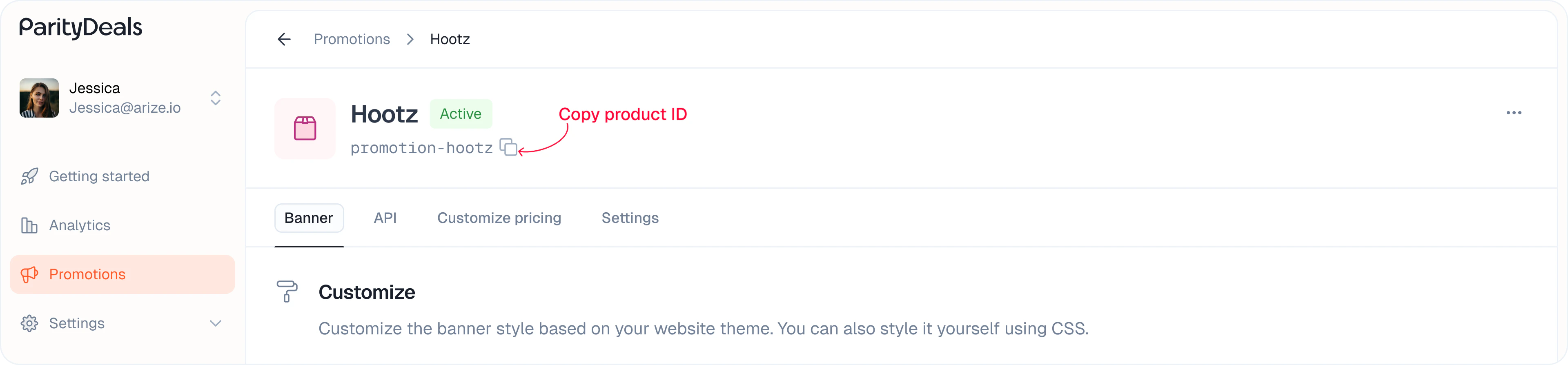
Copy your product ID from the listing or promotion details page:
 ```js theme={null}
PDPromotionUI.init({
productId: 'promo_7e2de26fb47644e58e867a20i898j748', // Replace with your product ID of the promotion
showBanner: true,
});
```
This will automatically display a discount banner if the user is eligible for a discount.
***
# Displaying Dynamic Prices (Basic)
The easiest way to show dynamic prices is to add the `data-pd-price` attribute to a wrapper element, and place a child element with `data-pd-price-formatted` where you want the price to appear. The SDK will automatically update this with the correct price for each visitor.
**Example:**
```html theme={null}
```js theme={null}
PDPromotionUI.init({
productId: 'promo_7e2de26fb47644e58e867a20i898j748', // Replace with your product ID of the promotion
showBanner: true,
});
```
This will automatically display a discount banner if the user is eligible for a discount.
***
# Displaying Dynamic Prices (Basic)
The easiest way to show dynamic prices is to add the `data-pd-price` attribute to a wrapper element, and place a child element with `data-pd-price-formatted` where you want the price to appear. The SDK will automatically update this with the correct price for each visitor.
**Example:**
```html theme={null}
Basic Plan
$99
```
**That's it!** The SDK will find and update these prices automatically.
***
# Customizing Price Display (Basic)
If you want to style different parts of the price (like the currency symbol or decimals), you can break the price into parts using these attributes **inside** a container with `data-pd-price`:
| Data Attribute | Description |
| :-------------------------------- | :----------------------------------------- |
| `data-pd-price-formatted` | The full formatted price (e.g., "\$99.50") |
| `data-pd-currency-symbol` | Only the currency symbol (e.g., "\$") |
| `data-pd-currency-code` | 3-letter currency code (e.g., "USD") |
| `data-pd-price-integer` | Integer part of the price (e.g., "99") |
| `data-pd-price-decimal` | Decimal part (e.g., "50") |
| `data-pd-price-decimal-separator` | The decimal separator (e.g., ".") |
**Example:**
```html theme={null}
```
***
# SDK Configuration Options
| Option | Type | Default | Description |
| ------------------------ | -------------------- | --------- | ---------------------------------------------------------------------------------------------------------------------------- |
| `productId` | string | '' | The product ID to display |
| `showBanner` | boolean | true | Whether to show the discount banner |
| `localizePricing` | boolean | true | Convert to local currency |
| `baseCurrencyCode` | string | USD | If you use any base currency other than USD, you must provide this. Currency conversion will be done using this code. |
| `baseCurrencySymbol` | string | \$ | If you use any base currency other than USD, you must provide this. Only for the displaying purpose, but still important. |
| `currencyDisplay` | `symbol\|code\|name` | symbol | The currency display format. This only works on the `data-pd-price-formatted` element. |
| `showDecimal` | boolean | false | Whether to show decimals |
| `minimumDecimalDigits` | number | 0 | The minimum number of decimal digits |
| `maximumDecimalDigits` | number | 2 | The maximum number of decimal digits. Maximum is 2. |
| `banner.*` | object | — | Customization for the discount banner |
| `banner.noStyles` | boolean | false | if true, no styling will be applied to the banner |
| `banner.showCloseButton` | boolean | true | Control close button visibility. This setting will work only if close button is enabled from the ParityDeals banner settings |
| `banner.placement` | `top\|bottom` | 'top' | The placement of the discount banner |
| `banner.container` | string | null | The container for the discount banner |
| `banner.backgroundColor` | string | '#f0f0f0' | The background color of the discount banner |
| `banner.fontColor` | string | '#333333' | The font color of the discount banner |
| `banner.borderRadius` | string | '0px' | The border radius of the discount banner |
| `banner.fontSize` | string | '14px' | The font size of the discount banner |
***
## data-props override
You can override the default properties of the price elements by adding a `data-props` attribute to the element.
**Example:**
In the below example, we override the `showDecimal` property to false.
```html theme={null}
```
#### Supported attributes
* `data-pd-show-decimal` - Whether to show decimals
* `data-pd-localize-pricing` - Whether to localize the pricing
* `data-pd-minimum-decimal-digits` - The minimum number of decimal digits
* `data-pd-maximum-decimal-digits` - The maximum number of decimal digits
* `data-pd-currency-display` - The currency display format
***
# Advanced Usage
## Grouping and Strikethrough Prices
For more complex pricing layouts, you can use these advanced attributes:
* `data-pd-original-price-display`: Shows a "compare at" or strikethrough price (never discounted, but can be localized).
* `data-pd-rel`: Groups related price elements so they update together (e.g., main price and strikethrough).
**Example:**
```html theme={null}
```
You can assign the same `data-pd-rel` value to all elements that should update together.
***
# API Reference (Advanced)
All SDK functions are asynchronous and return a `Promise`.
None of the below finctions inherit the configuration options set in the `init` function. You need to pass the options for each function call.
## `getUpdatedPrice`
Calculate and return the updated price for a given base price (does not update the DOM):
```js theme={null}
const price = 99.99;
const options = { localizePricing: true };
PDPromotionUI.getUpdatedPrice(price, options)
.then(result => {
console.log('Updated price object:', result);
});
```
## `updatePriceElement`
Update a specific DOM element's price:
```js theme={null}
const priceElement = document.querySelector('#basic-price');
const options = { showDecimal: false };
PDPromotionUI.updatePriceElement(priceElement, options)
.then(result => {
console.log('Price element updated successfully.');
});
```
## `updatePrice`
Bulk update multiple price elements with custom templates:
```js theme={null}
const priceUpdates = [
{
element: document.querySelector('#price-1'),
price: 10,
options: { localizePricing: true },
template: '{{formattedPrice}}
'
},
{
element: document.querySelector('#price-2'),
price: 20,
options: { isOriginalDisplay: true },
template: '{{currencySymbol}}{{integerPart}}'
}
];
PDPromotionUI.updatePrice(priceUpdates)
.then(results => {
console.log('All prices updated:', results);
});
```
***
# Support
Need help or have questions? Reach out to us anytime at **[hi@paritydeals.com](mailto:hi@paritydeals.com)**.